
Blog
 Sonya
SonyaShopify now makes it much easier to manage structured content across your store using metaobjects. One very practical use case is building a dynamic FAQ list that can change from product to product without duplicating sections or hardcoding content.
In this guide, we will walk through how to set up a product level FAQ list using Shopify metaobjects and product metafields, using the Horizon theme as an example.
This approach works well if some products share the same FAQs while others need completely different question and answer sets.
Step One: Add a FAQ Section to Your Product Template
Start by opening your theme editor.
Select your product template and add a FAQ list section to the template. At this point, the FAQ section is static, meaning the same questions will appear on every product.
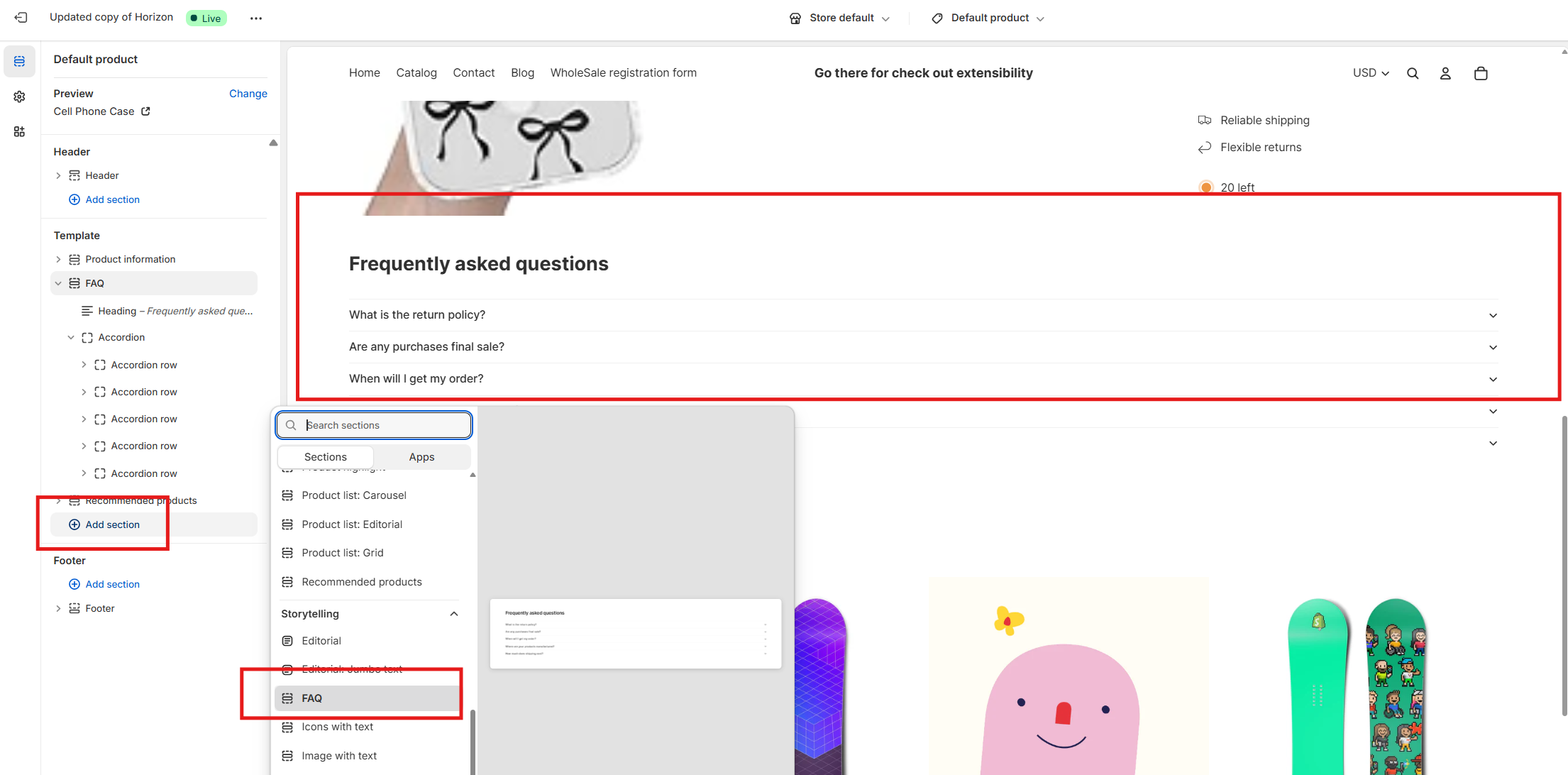
This is useful for store wide questions like shipping or returns, but not ideal for product specific information. To make the FAQ dynamic, we will connect it to metaobjects.
Step Two: Create a Metaobject Definition for Product FAQs
Go to your Shopify admin.
Navigate to Settings, then Metafields and metaobjects, and open Metaobjects.
Create a new metaobject definition named product_faq.
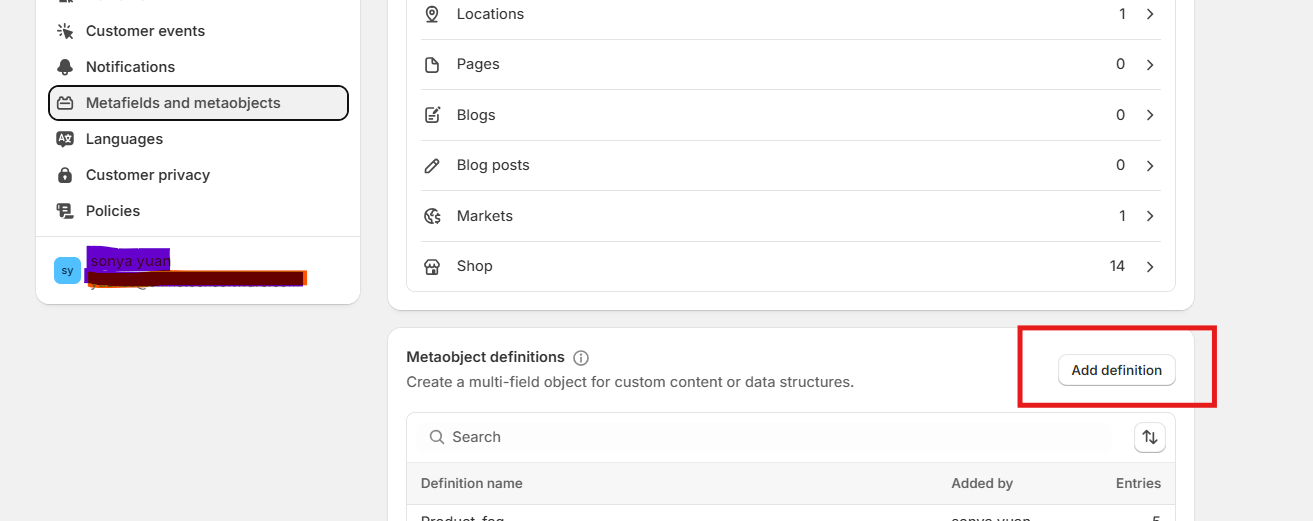
Inside this metaobject, add the following fields.
A single line text field for the question title
A rich text field for the answer content
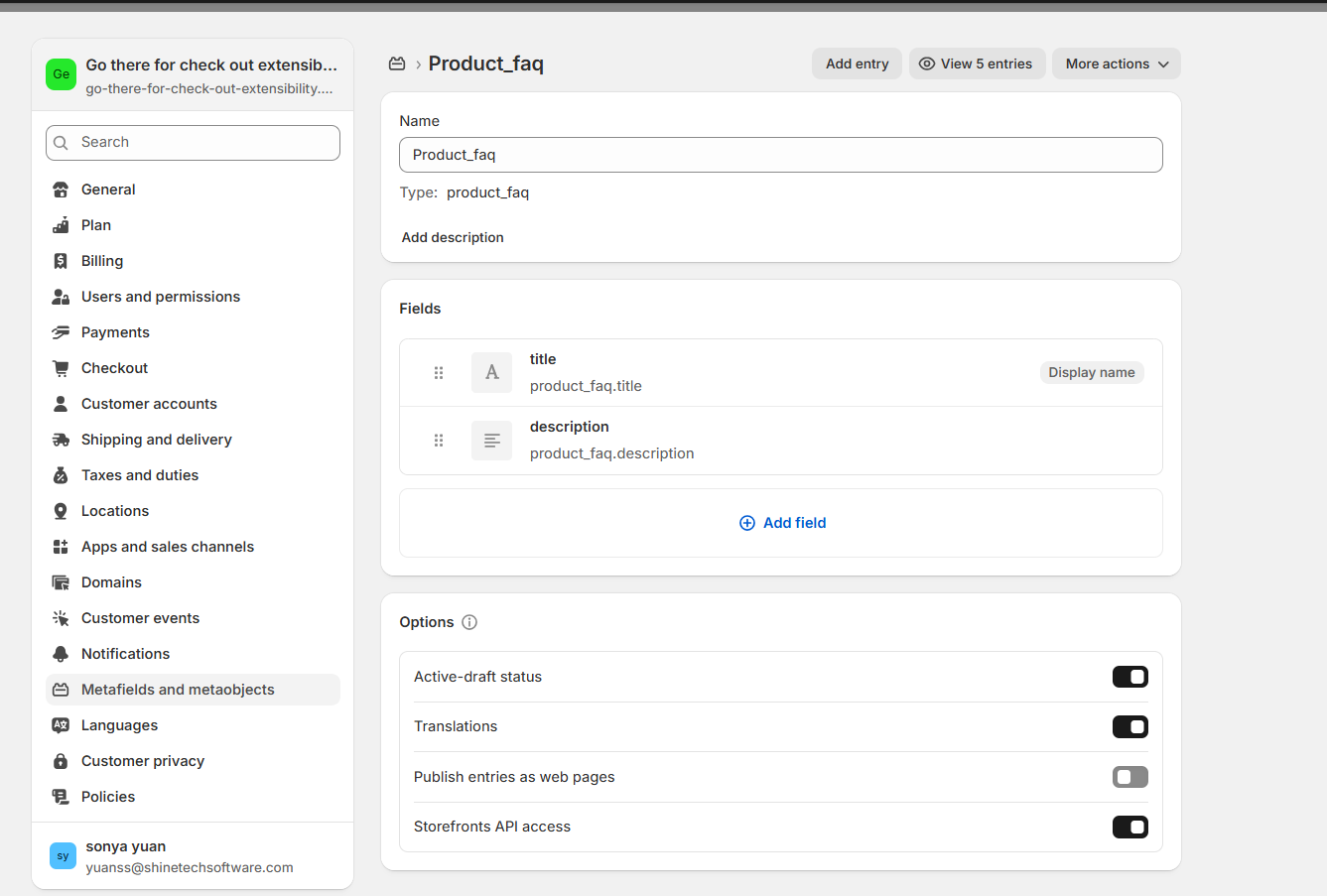
This structure allows you to format answers properly and reuse the same FAQ set across multiple products if needed.
Once the metaobject definition is created, click Add entry (Admin-Content-Metaobjects) and start adding your FAQ content. Each entry represents one FAQ item with its own question and answer.
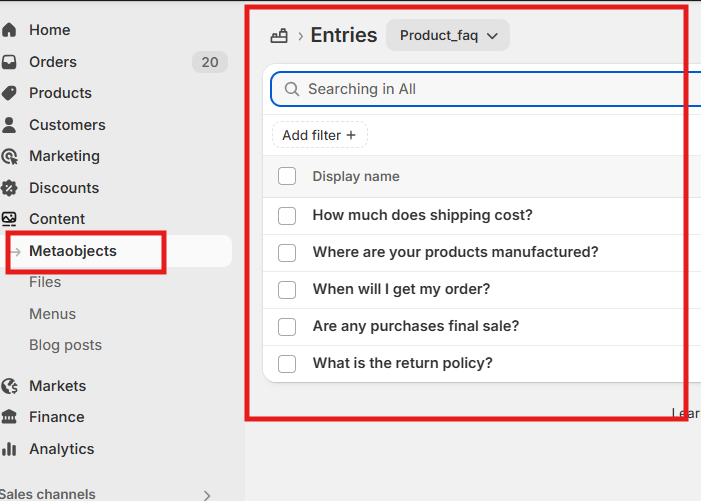
You can create as many FAQ entries as needed.
Step Three: Create Product Metafields to Reference the FAQ Metaobject
Next, you need a way to link each product to its FAQ content.
Go to Metafields under the Products section(Settings-Metafields and Metaobjects-Product metafield) and create metafields that reference the product_faq metaobject.
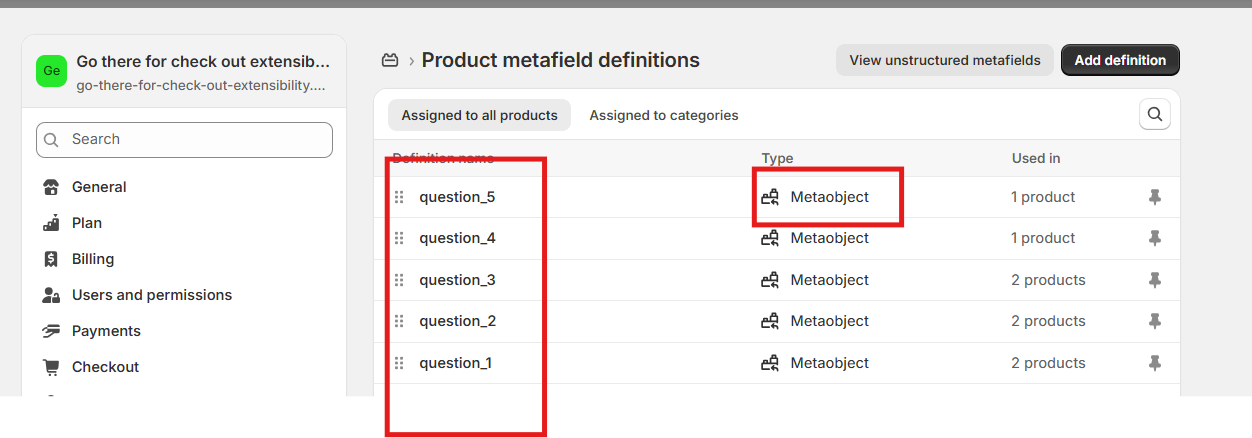
These metafields will act as connectors between the product and the FAQ entries you created earlier.
For example, you might create multiple metafields such as question_1, question_2, and so on, each referencing a product_faq entry.
Step Four: Bind FAQ Metaobjects to Individual Products
Open any product(Admin-Products) in your Shopify admin.
Scroll to the metafields area and assign specific product_faq entries to that product. This is where you choose which FAQs belong to which product.
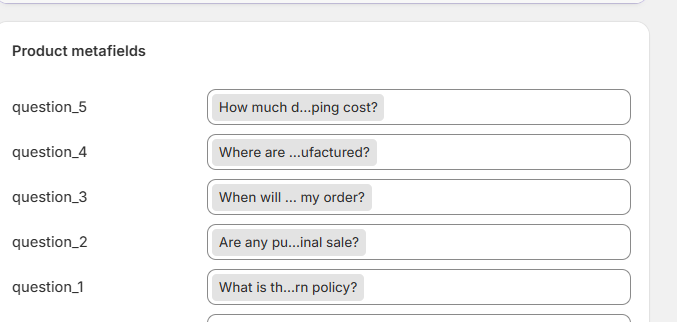
Different products can reference different FAQ entries, or they can reuse the same ones.
This gives you full flexibility without duplicating content.
Step Five: Connect Metafields to the FAQ Section in the Theme Editor
Now return to the theme editor.
Open the product template and locate the FAQ list section you added earlier.
For each accordion row in the FAQ section, bind the row heading to the question title field of the corresponding product metafield.
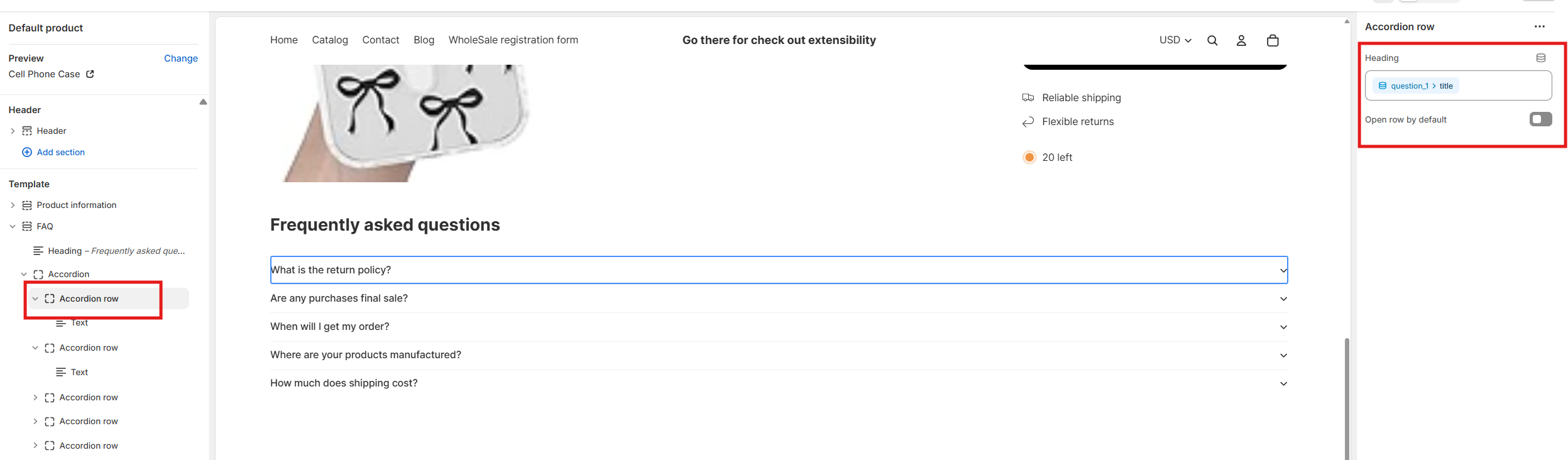
Then bind the accordion content text to the answer rich text field of that same metafield.
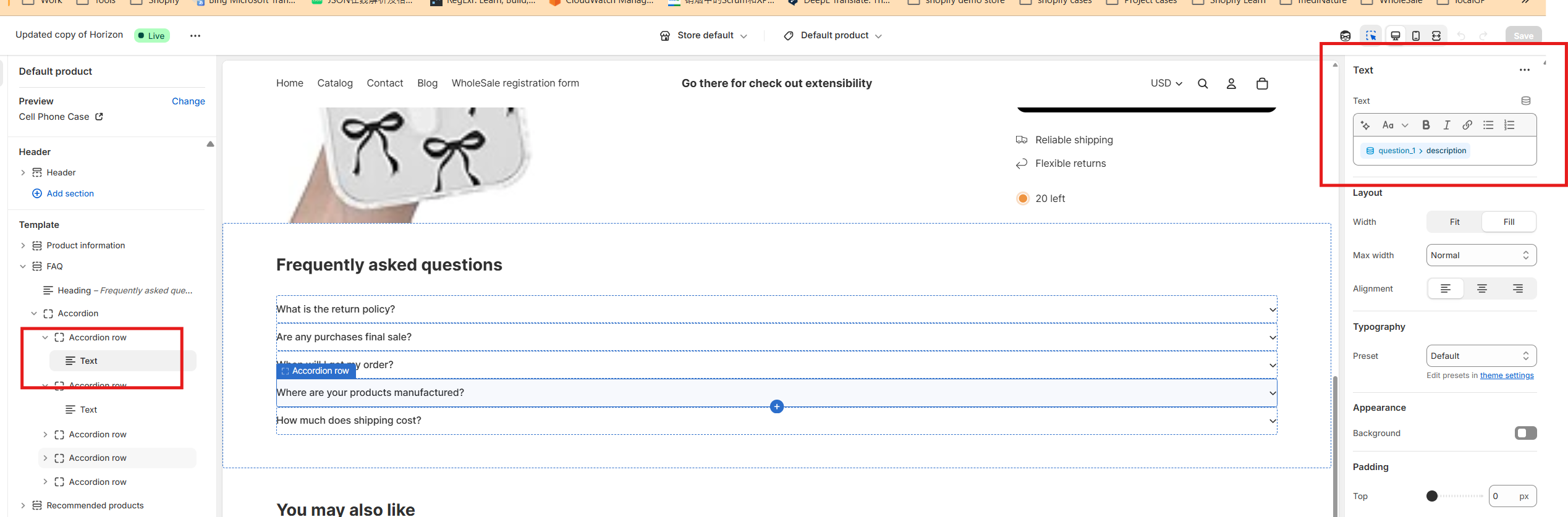
Repeat this process for all FAQ rows you want to support.
At this point, your FAQ section is fully dynamic and controlled from Shopify admin.
Step Six: Hide Empty FAQ Rows Automatically
If a product does not use all available FAQ rows, you may notice empty accordion items appearing on the product page.
To prevent this, open the _accordion-row.liquid file inside the blocks folder of your theme.
Add the following condition to hide rows without content.
{% if block.settings.heading == blank %}
hidden
{% endif %}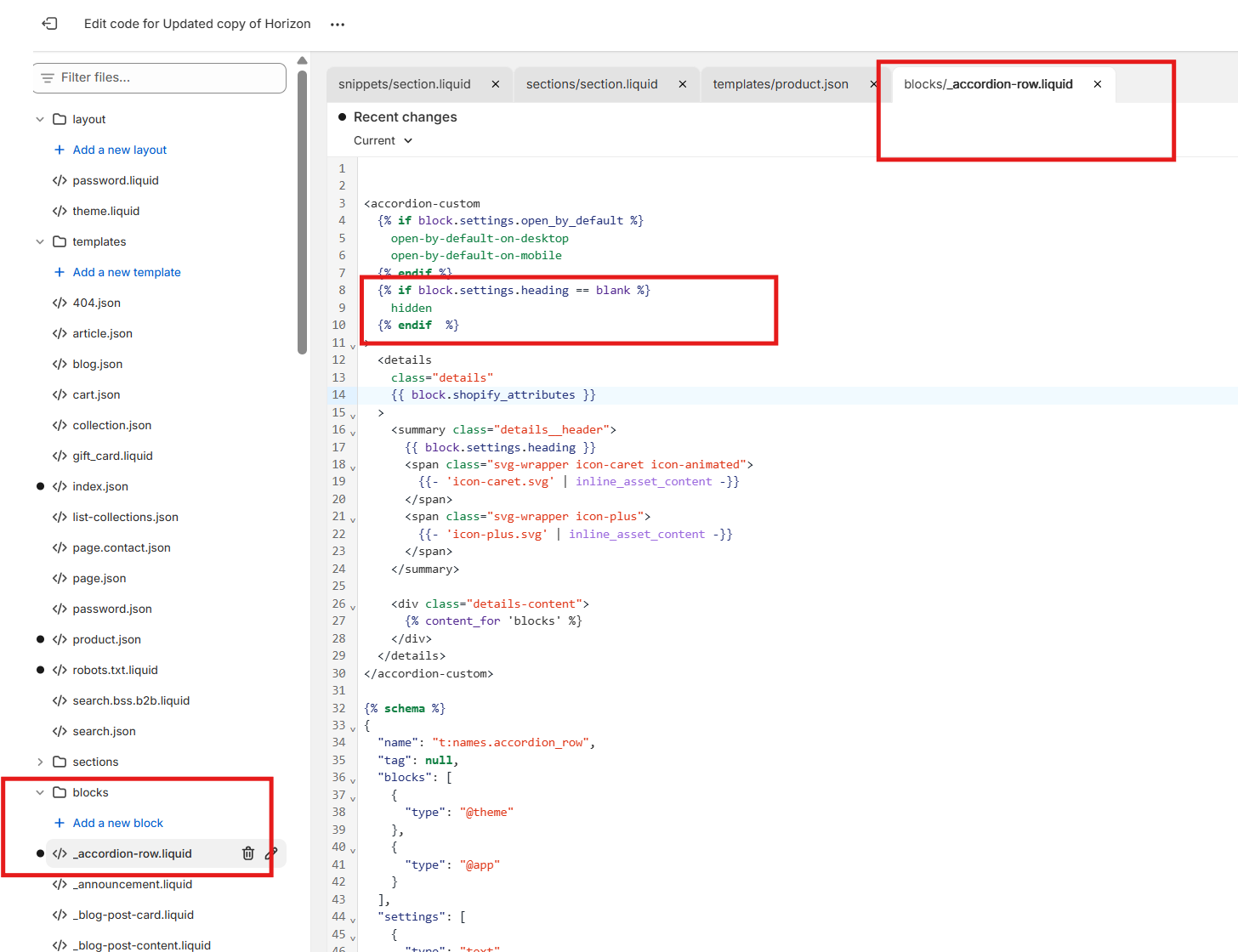
Then, at the bottom of the same file, add the following style.
<style>
.hidden {
display: none;
}
</style>This ensures that only FAQ rows with actual content will be visible on the product page.
Why This Setup Works Well
Using metaobjects for product FAQs keeps your store organized and scalable.
You can update FAQ content in one place, reuse it across products, and avoid cluttering your theme with hardcoded text. It also makes your product pages easier to maintain as your catalog grows.
For merchants using the Horizon theme, this method fits naturally into the existing section and block structure and does not require complex customization.
If you manage a store with many products or frequently changing specifications, this approach is one of the cleanest ways to handle FAQs in Shopify today.
For any questions or further assistance, please don't hesitate to reach out. Simply leave us a message, and we will respond to you as soon as possible. We're here to help and look forward to working with you!